
For people who read PDFs
for hours on end.
If you spend your days inside papers, books and reports, you know the choice between readers bloated with toolbars, side panels, accounts and cloud sync, and bare viewers that leave you alone with the page. Nomadys-PDF sits in between. It is minimal (the page gets the whole window, and everything is a key away), but it brings the quality-of-life tools that make long reading sessions easier.
Made first for researchers who love keyboard-driven tools, but anyone can use it.
I wrote it for my own daily reading, and I give it to the community for free.
Beta. Everything works, but it is young. If something misbehaves, open an issue and attach the PDF if you can.
Little things that add up
- Reopens where you left off. Each file keeps its page, zoom and dark mode, and
npdfalone brings back your last session. - Never lose your place. Ctrl-o jumps back after any jump, and F previews a reference without leaving the page.
- Every link by its letters. Press f, then the letters shown on the link, like Vimium in a browser.
- Find any paper. \f searches by name, \/ by text, and \o opens the recent ones.
- Notes that travel. Highlights and comments are saved in the PDF and shown by every other reader.
- A to-do list in your papers. t puts a highlight on it, d ticks it, and
:tasksshows what is left in all of them. - Pictures and text on the page. Place a signature, turn and mirror it, and write a note anywhere, with the keyboard or the mouse.
- Undo anything. Highlights, comments, images, text and deleted pages all come back.
- Easy on the eyes. A dark mode that keeps photographs, fifteen themes, menus always in the theme's dark side, and any system font.
- No learning wall. The \ leader key opens many functions, \c shows a menu with every key of the mode you are in, and messages say what the next key does.
What it does
Everything you do with a paper, one or two keys away
No toolbars, no menus, no sidebars. If you know vim, you already know how to move. If you do not, there is one key to remember. The backslash \ is the leader key, and it starts many functions, such as \f to find a file, \l for the panel and \g for the page grid. Type \c at any moment and a menu with every key of the mode you are in appears to help you. Esc always brings you back.
Highlights and comments, with real equations
A text cursor moves word by word; five colours sit under your left hand. Comments
open next to the highlight, and anything between $…$ is typeset by LaTeX as
you write.
- Stored in the PDF as standard annotations, so Acrobat, Okular and Zotero show them
- Undo and redo everything, 200 steps deep
- Filter by colour, export to Markdown for Obsidian
- Merge a co-author's notes without duplicates
- Answer the reviewers with r, which replies to their comments in the PDF, while
:responsewrites the response letter
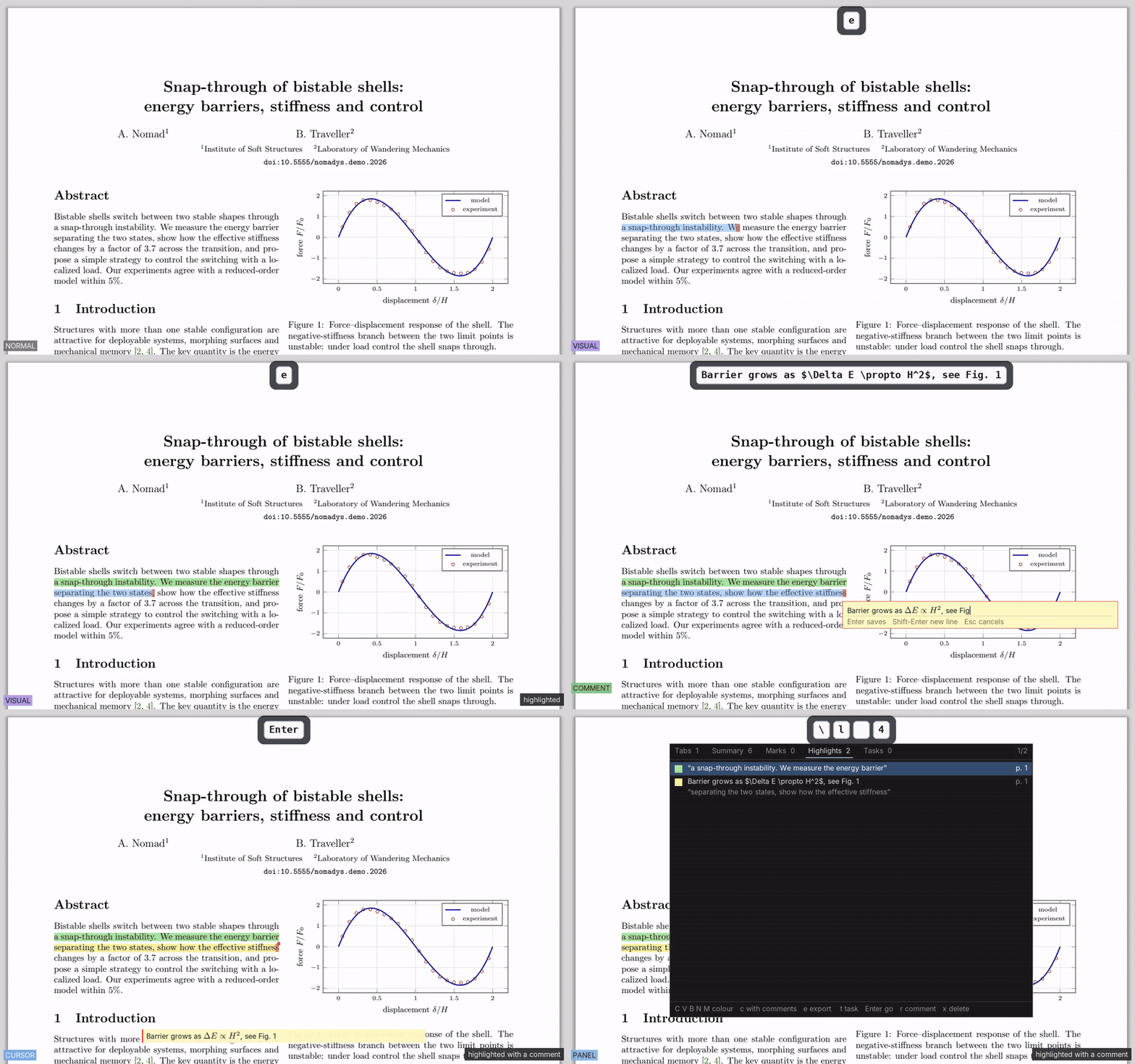
Turn highlights into tasks, and tick them off
When you answer reviewers, go through a co-author's draft or check claims, press t on a highlight and it goes on your task list, with a check box in the margin. d marks it done. The panel's Tasks tab lists what is left, then what is done and when.
:taskslists what is still to do in all your PDFs- Exported to Markdown as
- [ ]/- [x], ready for Obsidian - Stored in the PDF; Acrobat's check marks count too
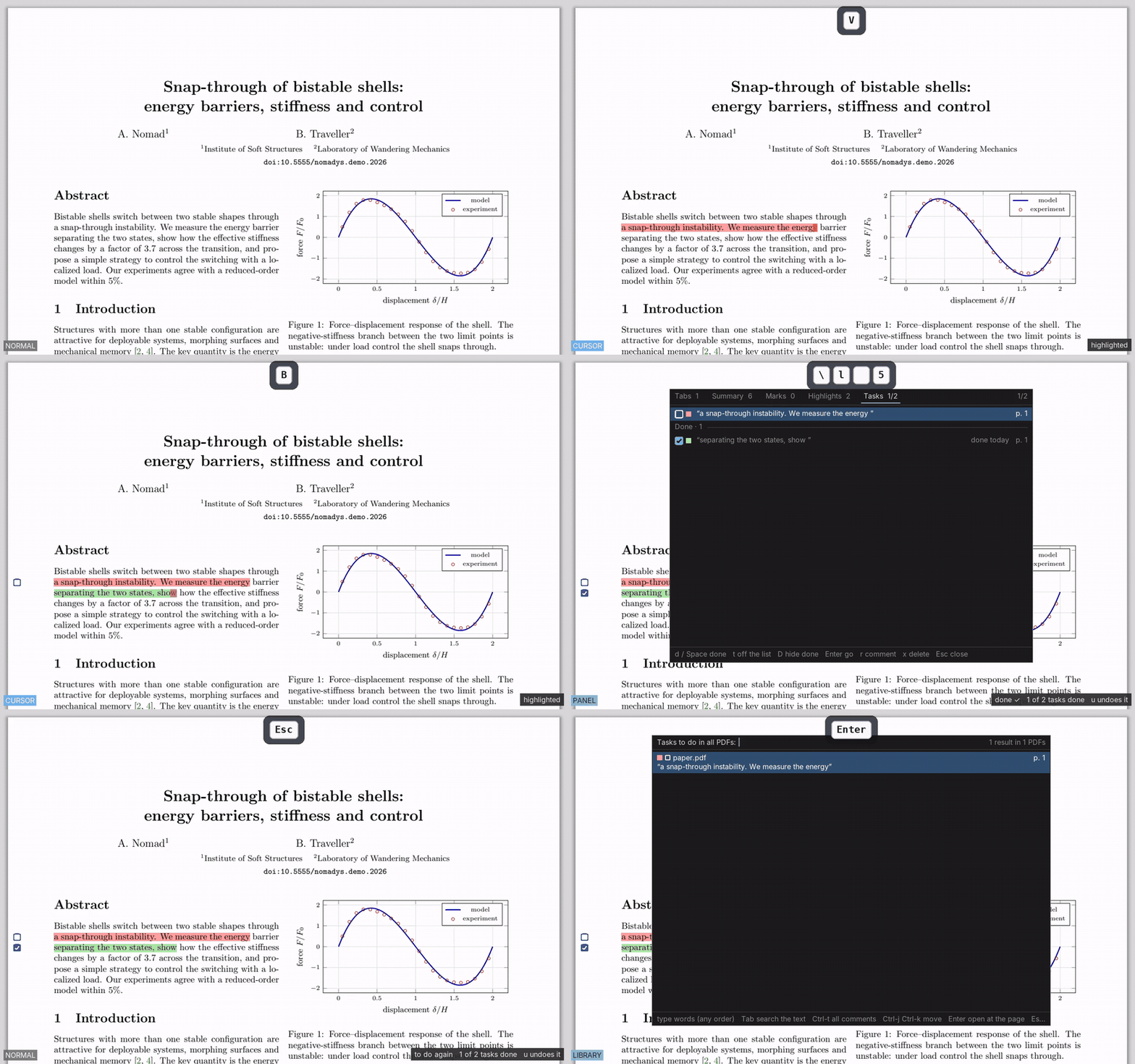
Place signatures and pictures, turn them and mirror them
For a signature, a stamp or a screenshot, use :image file.png or paste one. Then
drag it with the mouse. Drag the picture to move it, a corner to resize it and the knob
above it to turn it to any angle. Prefer the keyboard? hjkl move,
+ - resize, o turns it, f and F
mirror it.
- Follows the mouse at once, even on a heavy page
- Never re-encoded, so crop, turn and mirror can be undone at any time without loss
- Standard annotations, so every other reader shows them
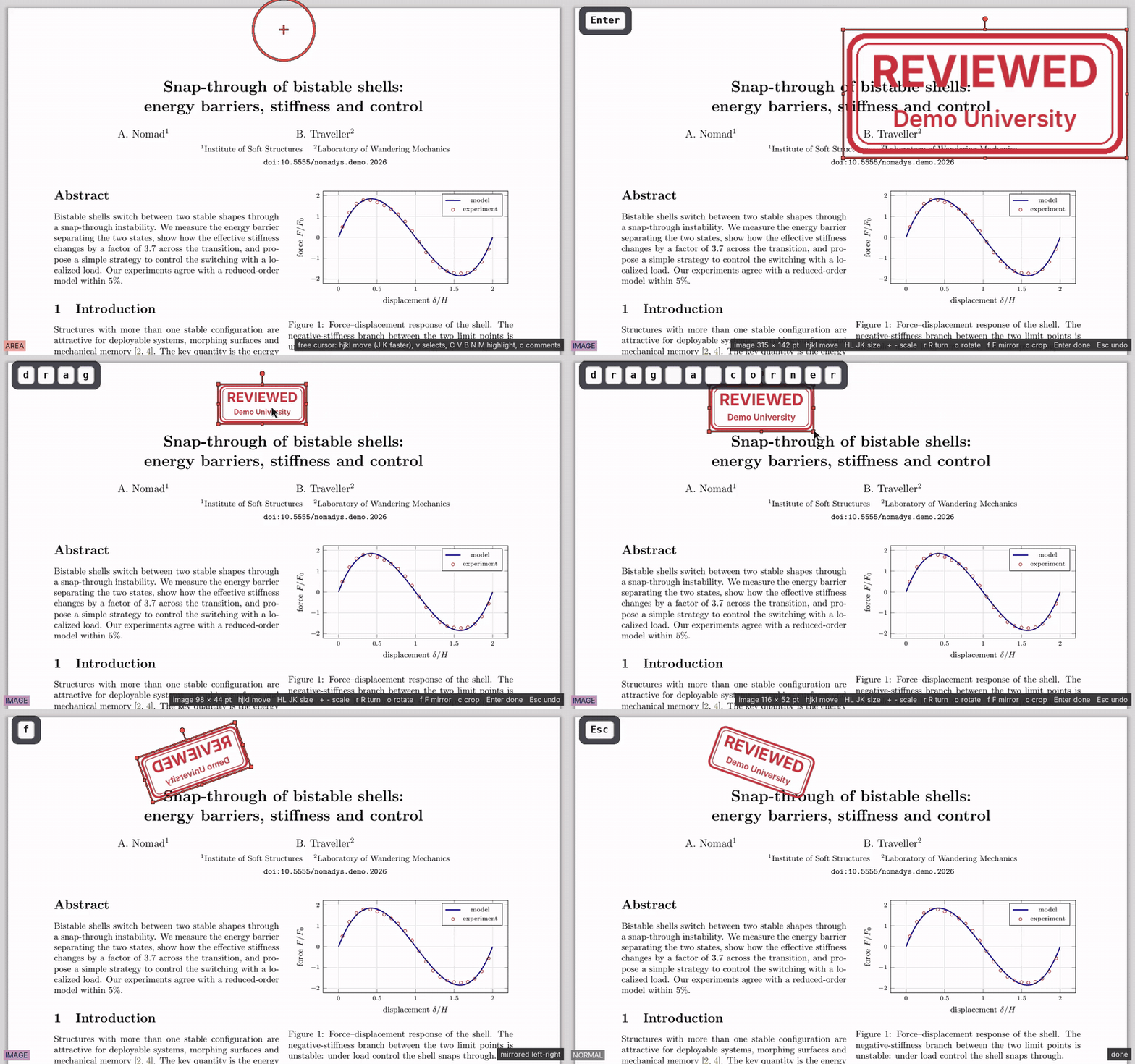
Write anywhere on the page
To fill in a line a form has no field for, label a figure or leave a note in the margin, press T and write, and the box grows with the text. Ctrl-= and Ctrl-- change the letters, and later e moves the box or changes its width, and i writes in it again.
- Real text in a standard font that takes a few bytes a letter, stays sharp at any zoom, and can be selected and searched in other readers
- Accents and the usual signs work; other alphabets are coming
- Undo, redo and delete like everything else
See a reference without losing your place
Press F and every citation, figure, equation and section reference on screen gets a letter. Type it, and the target opens in a window right there, be it the bibliography entry, the figure on page 7 or the equation from the appendix.
- f follows the link instead; Ctrl-o always comes back
- Marks and a jump history, like in vim
- Web links and DOIs open in your browser
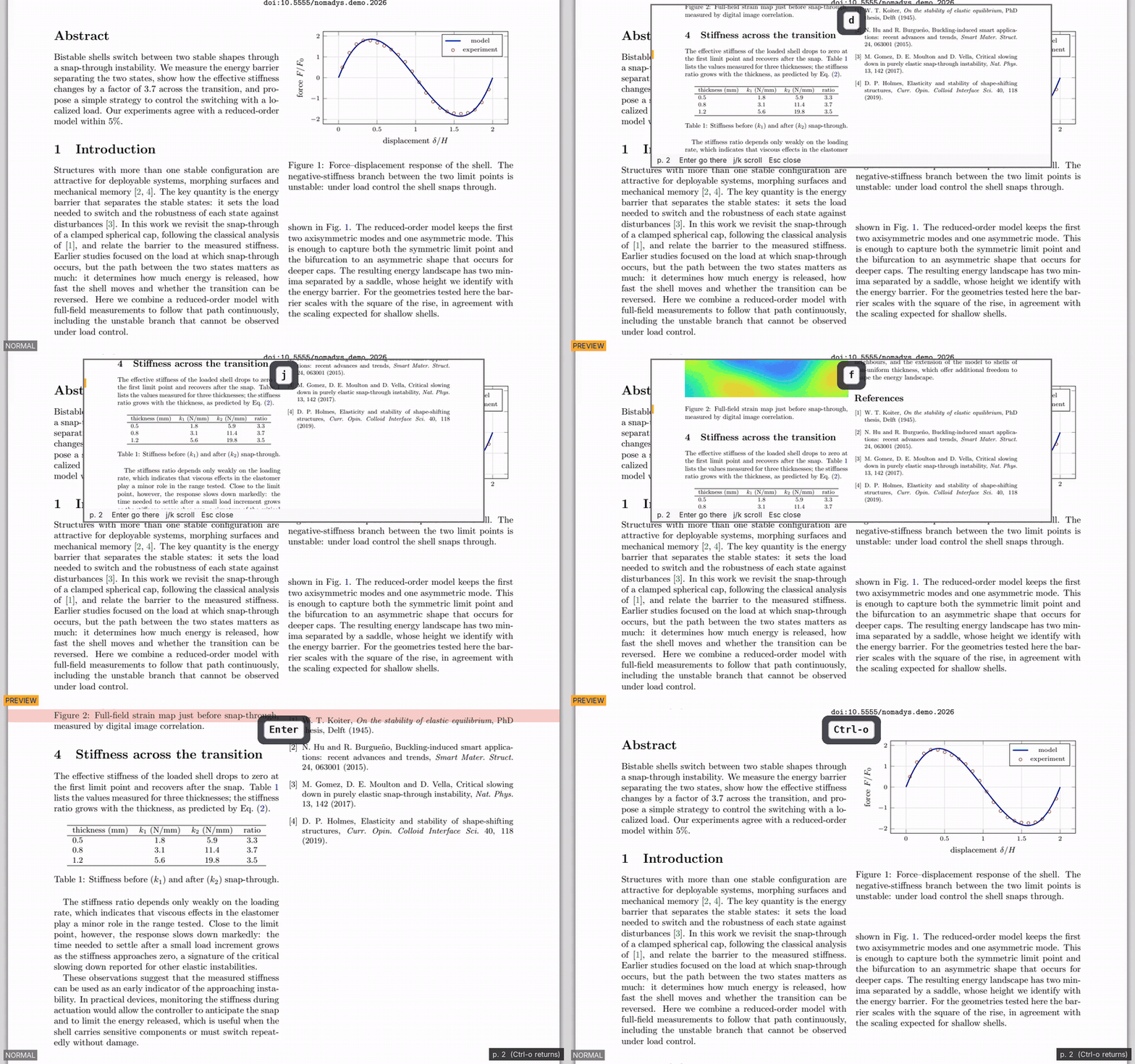
Search the text of every PDF you own
"Where did I read about that?" \/ searches the text of all the PDFs in your folders as you type, and opens the right one at the right page, with the words highlighted. \n does the same with every comment you ever wrote.
- An index built in the background at low priority, which takes about 16 ms per PDF, once
- Afterwards only new and changed files are read again
- \f finds any PDF by its name, fuzzy
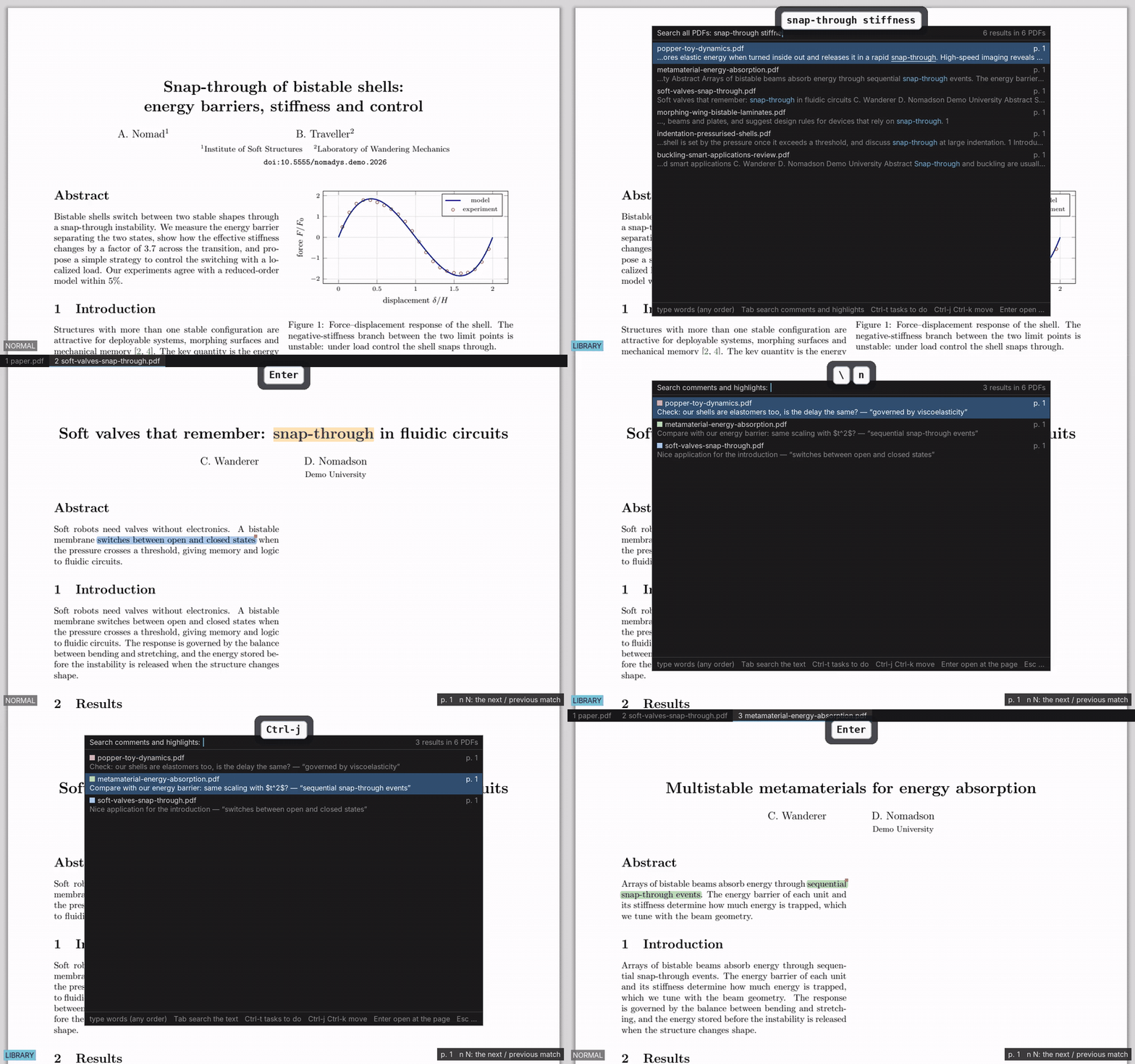
What changed since the submitted version?
:diff old.pdf compares two versions word by word, with new text in green,
changes in amber and deletions marked in red. ]c goes to the next change and
tells you what it was, such as changed, was "3.2".
- Notes too. New, changed and removed highlights, comments and text boxes are framed in the same colours
- Ignores what is not a change, such as hyphenation, ligatures and page breaks
- Updated every time LaTeX recompiles, which makes answering reviewers easy
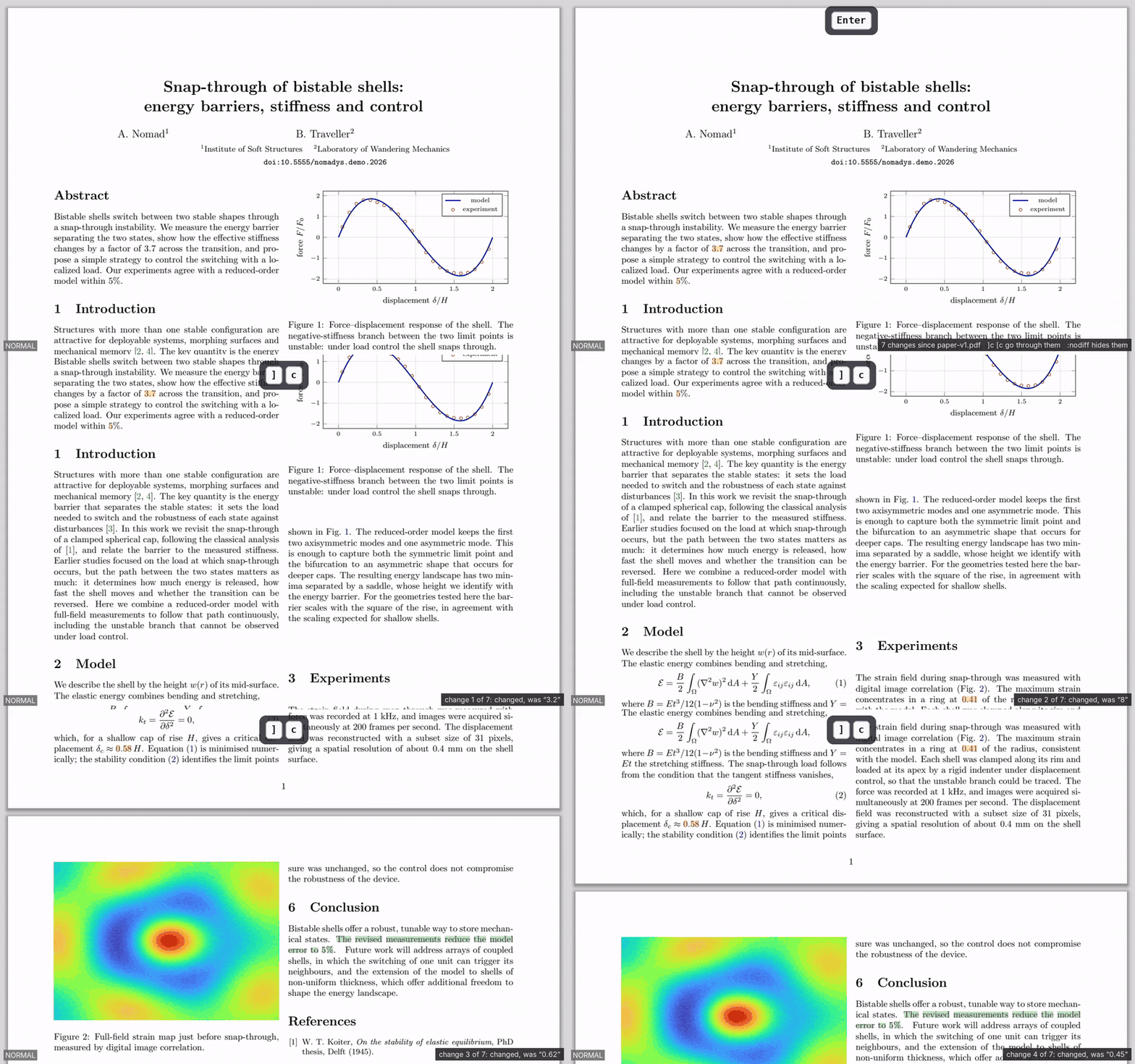
The figure and the text, side by side
Split the window and keep the figure on one side while you read the text that discusses it, or open another paper next to it. Each pane has its own place, zoom and search.
- Ctrl-w v, Ctrl-w s and Ctrl-w w are the keys of vim
- Tabs, several windows, and your session restored on the next start
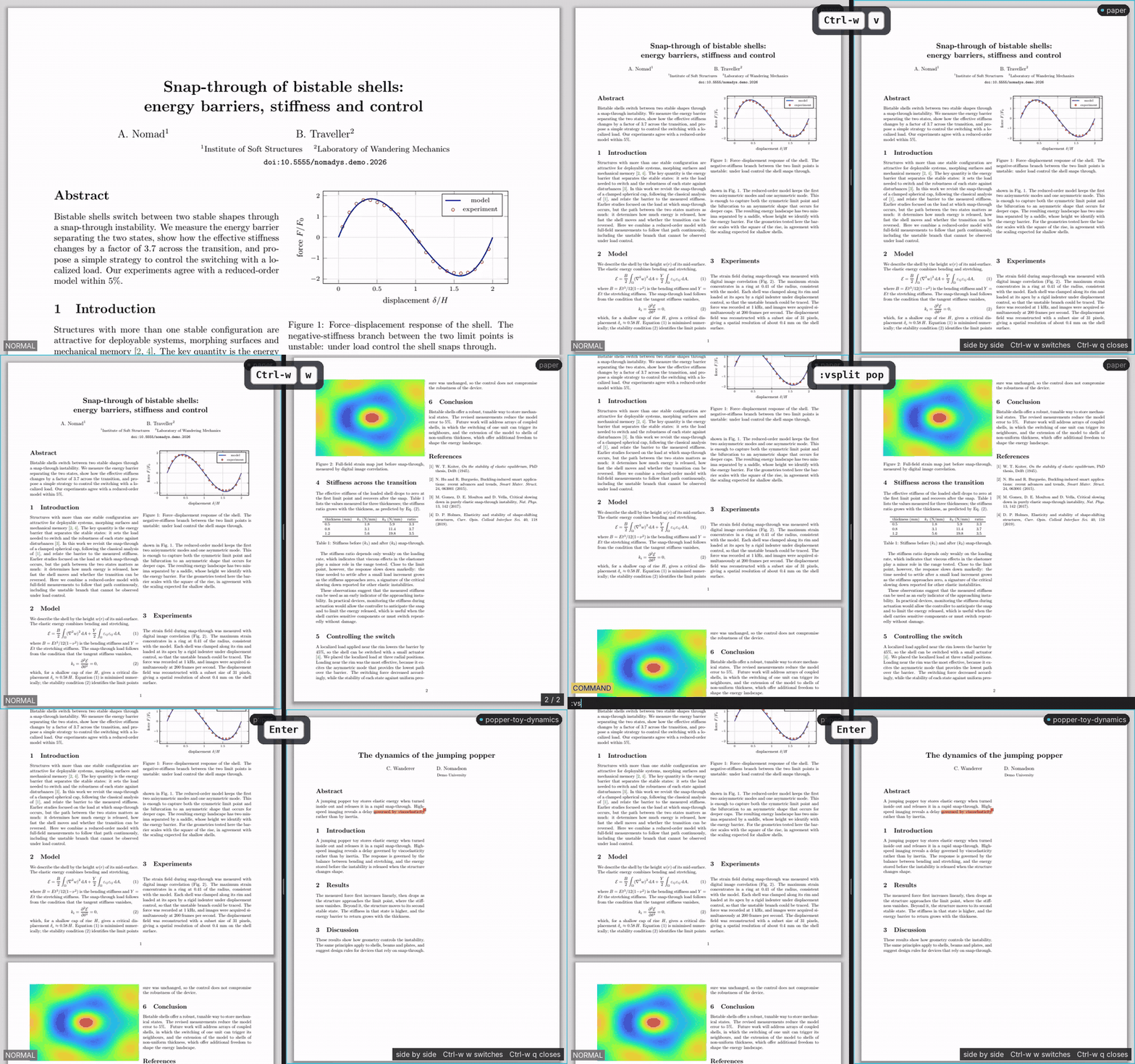
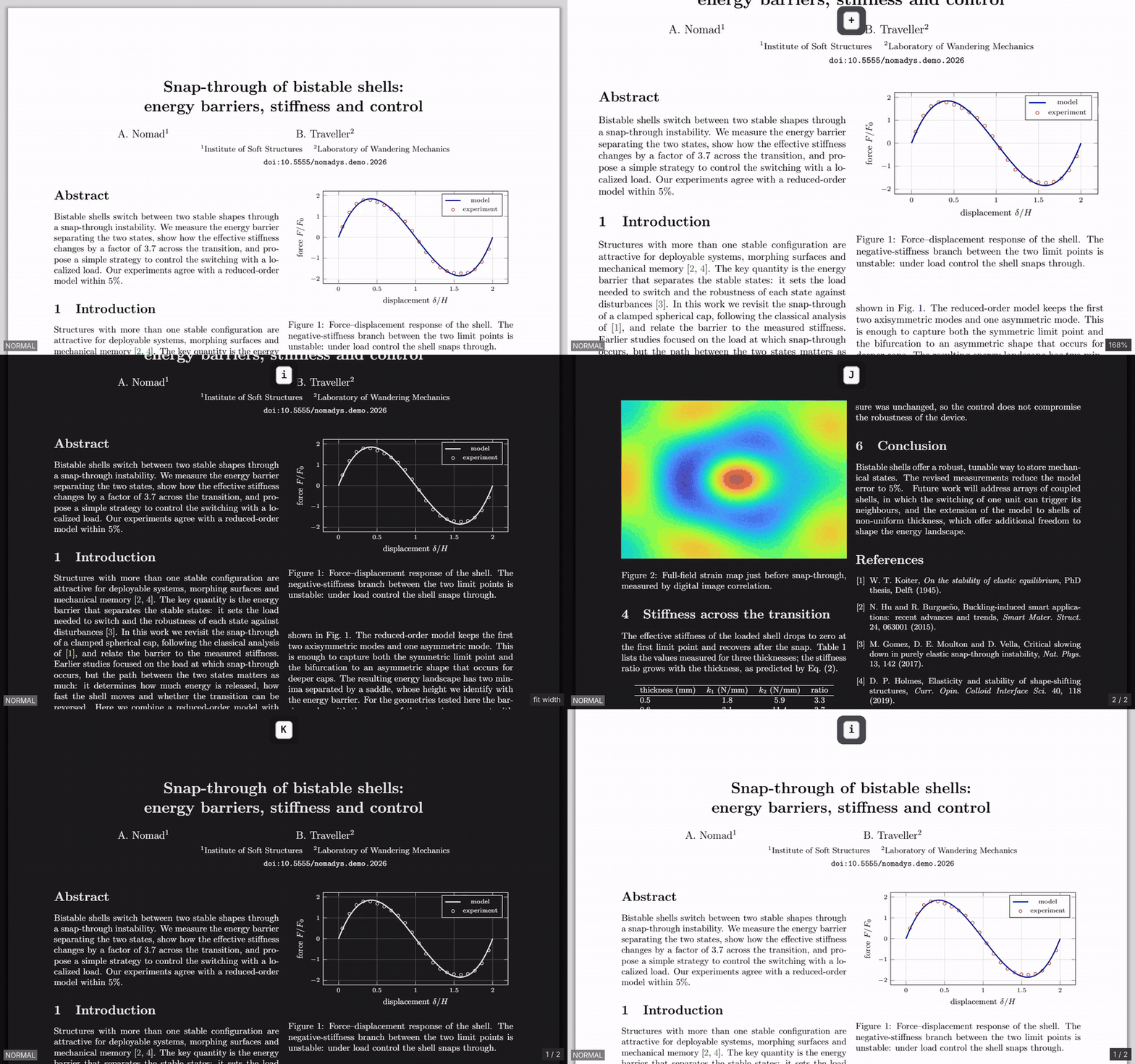
A dark mode that understands figures
Press i and text and plots are recoloured for the night, with firm, readable letters, while photographs and the pictures you placed keep their colours. Highlights stay readable too, because the paper takes their colour and the letters keep the ink.
- Figures trimmed in LaTeX leave no light frame behind
- Each file remembers its zoom, dark mode and page
- Heavy pages render in slices, so scrolling never freezes
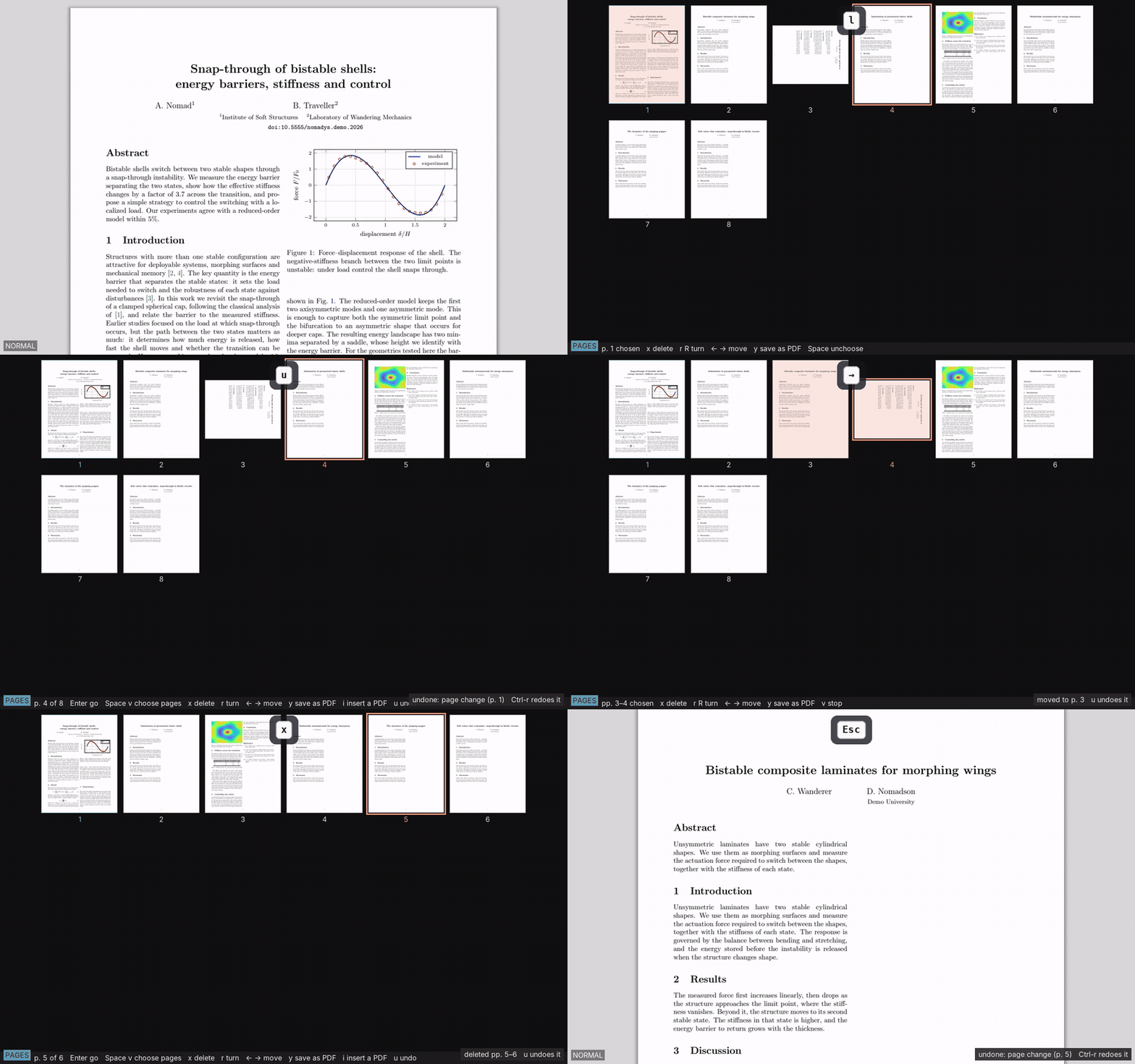
Rearrange pages without another program
All pages as thumbnails with \g. Choose pages one by one with Space (pages 1 and 4, say) or a run with v, then turn or delete them, or save just those as a new PDF. The arrows walk a block of pages along. Every change can be undone.
:extract 3-7,:insert,:append,:delete- Your marks follow their pages
Themes
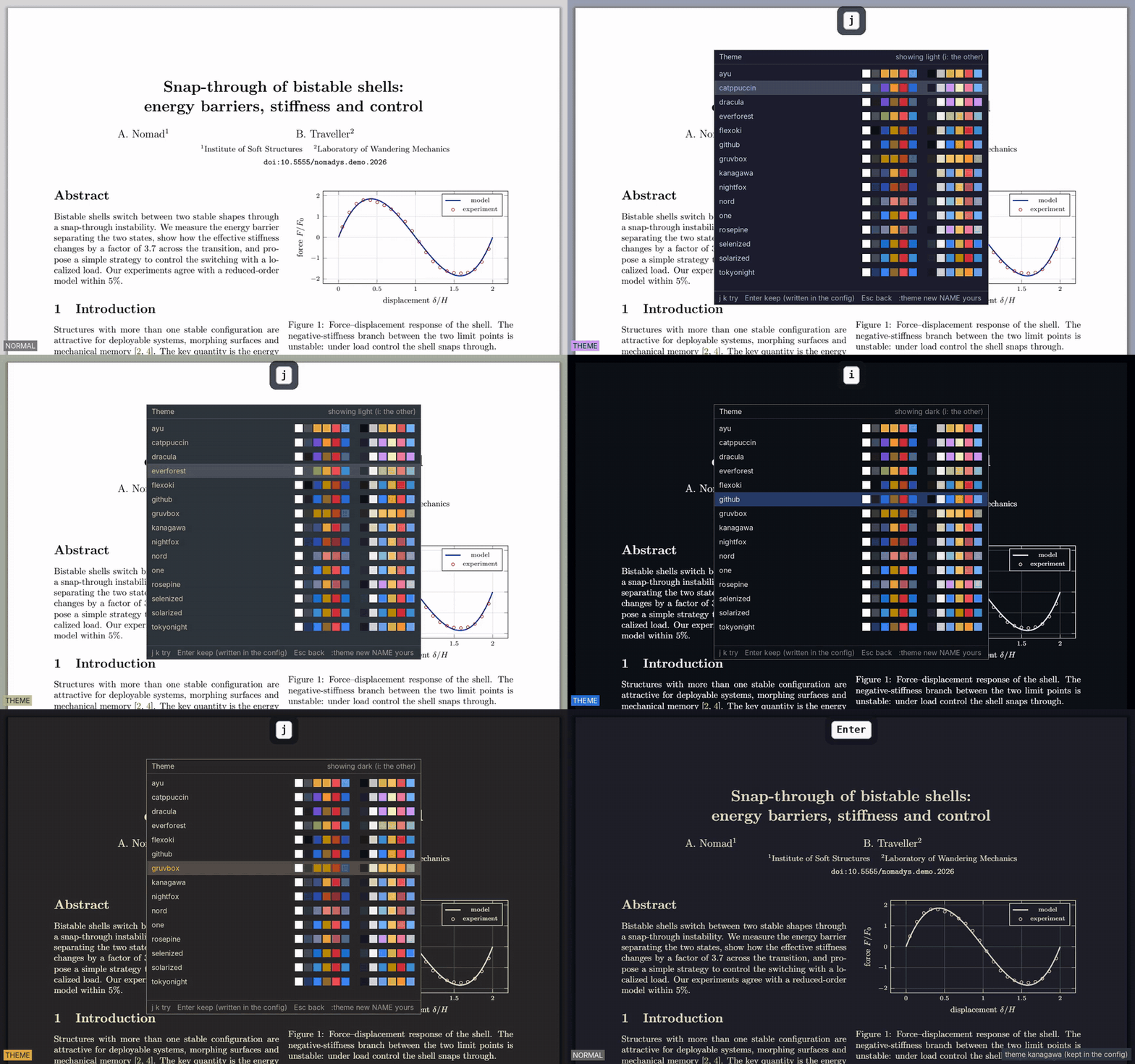
Fifteen themes, each with a light and a dark side
Built from the official palettes and checked for contrast, with the ink of dark
pages at least 11:1 against the paper. \T tries them live on your PDF,
i switches sides, :theme new starts your own.
Pick one while you read
Moving in the list applies each theme at once; Enter keeps it, Esc goes back. Menus, bars and lists are always in the theme's dark side, so only the page changes when you switch modes.
- gruvbox, tokyonight, catppuccin, rosé pine, kanagawa
- everforest, dracula, nord, solarized, flexoki
- github, one, ayu, nightfox, selenized
Made for research
Built around how papers are read and written
Nomadys-PDF was written by a researcher, for the daily work of reading literature, writing with LaTeX and answering reviewers.
LaTeX and VimTeX
Forward and inverse search with SyncTeX, and automatic reload when LaTeX writes the PDF.
Quotations with the page
Copies “…” (p. 215), with the page number printed on the paper, ready to paste.
BibTeX in one command
Finds the paper's DOI or arXiv number and copies its BibTeX entry.
Your notes in Markdown
Highlights and comments, page by page, with equations, filtered by colour; tasks as check boxes. Great with Obsidian.
Co-authors' notes
Bring the highlights and comments of a colleague's copy into yours, without duplicates.
Text anywhere on a page
Write a note, a label or a line a form has no field for. The box grows with the text, and you can write in it again later.
Figures for slides
Mark a region and copy it as a 300 dpi image, or place a picture or a signature on a page.
Presentations
Fullscreen, one page at a time, the next slide prepared while you talk.
Forms and signatures
Fill in forms from the keyboard; signed PDFs keep their signatures valid.
Links by their letters
Every link gets a few letters. Type them to follow it, or preview where it goes.
Tabs, panes, sessions
Several papers in tabs, two in split view, and everything reopens as you left it.
Undo everything
Highlights, comments, images and page changes, back and forth, until you close the file.
Printing
Through CUPS, with page ranges, copies and both sides, from the command line.
Marks and jumps
Marks in each paper and a jump list, with Ctrl-o to take you back.
Private by design
No accounts, no cloud, no telemetry. Your files and notes never leave your computer.
Download
Up and running in a minute
Pick what suits your system. Every file has a SHA-256 in
SHA256SUMS. Tried on Ubuntu 22.04 and 24.04, Debian 12 and 13, Fedora, Arch and
openSUSE Tumbleweed, under X11 and Wayland.
Debian, Ubuntu, Linux Mint, Pop!_OS
The .deb package. Double-click it, or
sudo apt install ./nomadys-pdf_0.5.0_amd64.debGet the .deb
Any distribution
The AppImage needs nothing installed.
chmod +x Nomadys-PDF-0.5.0-x86_64.AppImage
./Nomadys-PDF-0.5.0-x86_64.AppImage
Get the AppImage
Arch Linux
Install the package from the release with pacman. An AUR package will come later.
sudo pacman -U nomadys-pdf-0.5.0-1-x86_64.pkg.tar.zstGet the Arch package
Or build it from source
# Debian / Ubuntu
sudo apt install build-essential pkg-config libsdl3-dev \
     libfreetype-dev libfontconfig-dev zlib1g-dev

git clone https://github.com/hdsoliveira/Nomadys-PDF.git
cd Nomadys-PDF
make && make install
The PDF engine (PDFium, the engine of Chrome) is downloaded and verified automatically.
Open a paper
npdf paper.pdf          # or several files, one tab each
npdf                    # your last session
Learn the keys as you go
\c shows every key of the mode you are in. The getting started guide takes five minutes, and the keyboard reference lists everything.
TeX Live is optional, for equations in comments and SyncTeX, and so are curl for BibTeX
and CUPS for printing.
Honestly
What it does not do (yet)
- Linux only, for now (Wayland and X11).
- Text on the page uses the Latin alphabet with accents; Chinese, Japanese, Korean, Greek and Cyrillic, bold, italic and equations are planned.
- Autosave is on, so the open file is saved by itself, and the file as it was before the first save of a session is kept next to it as
name.pdf.bak.:w name.pdfsaves a copy, andautosave = falsekeeps an original untouched. - :diff compares text and notes, not figures.
- No OCR. Scanned pages are shown, not read.
Free, and it stays free
Enjoying it? Help it grow
Nomadys-PDF has no ads, no accounts and no paid version. I build it in my free time and share it with everyone. A star on GitHub helps others find it, and every bug report or idea makes it better. If it saves you time, you can also buy me a coffee.